
PAX終端機的初始化
確保 Wonder 應用程式已經安裝
- Turn on the device by pressing the power button at the top.
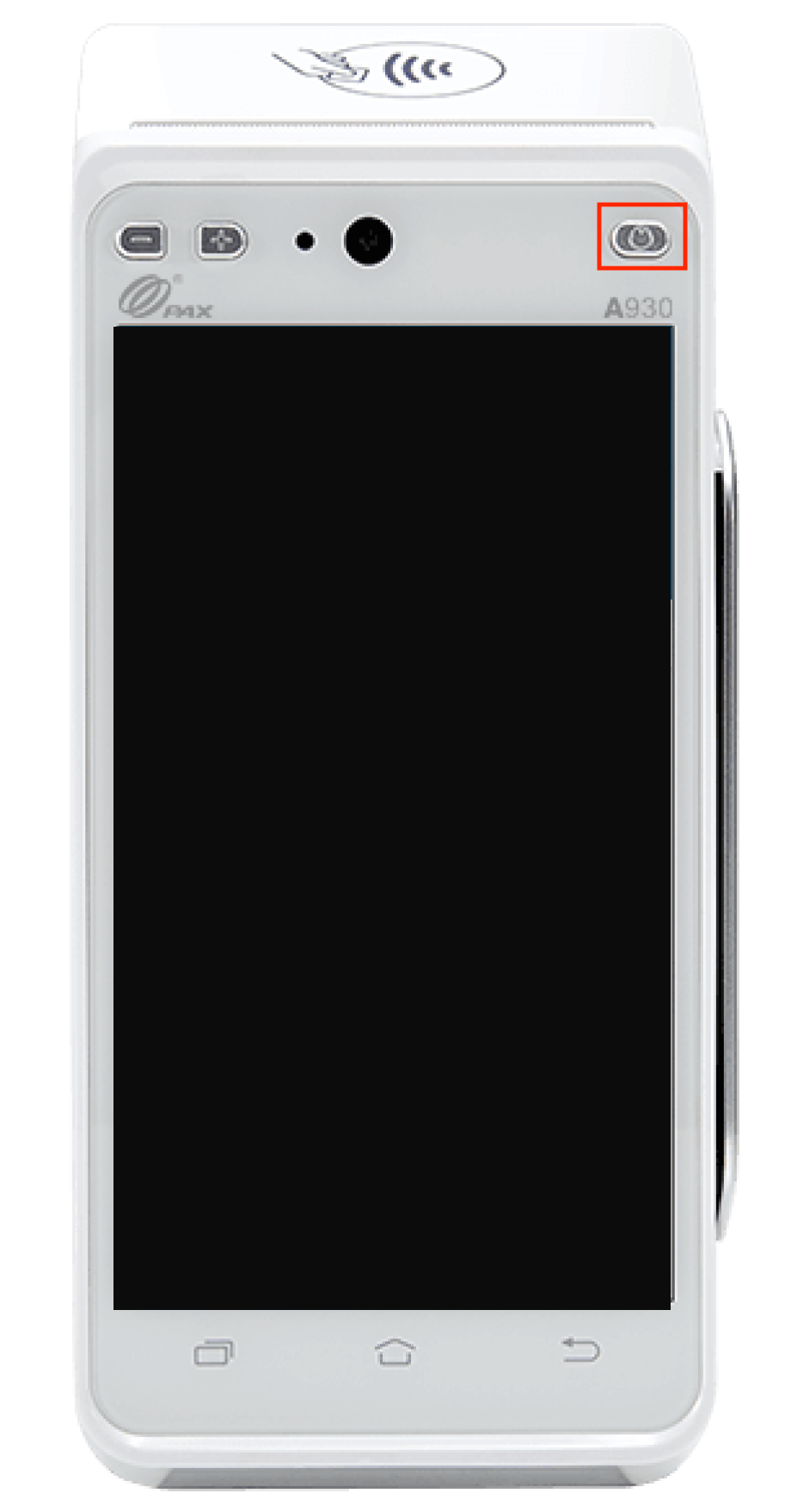
- When device is turned on, please check whether the Wonder App has been downloaded.
- If the application has been installed, you will see the app icon appear on the device’s homepage screen.

如果 Wonder 應用程式尚未被安裝
- If Wonder has not been installed, you can go to App Library from device’s homepage screen to download it.
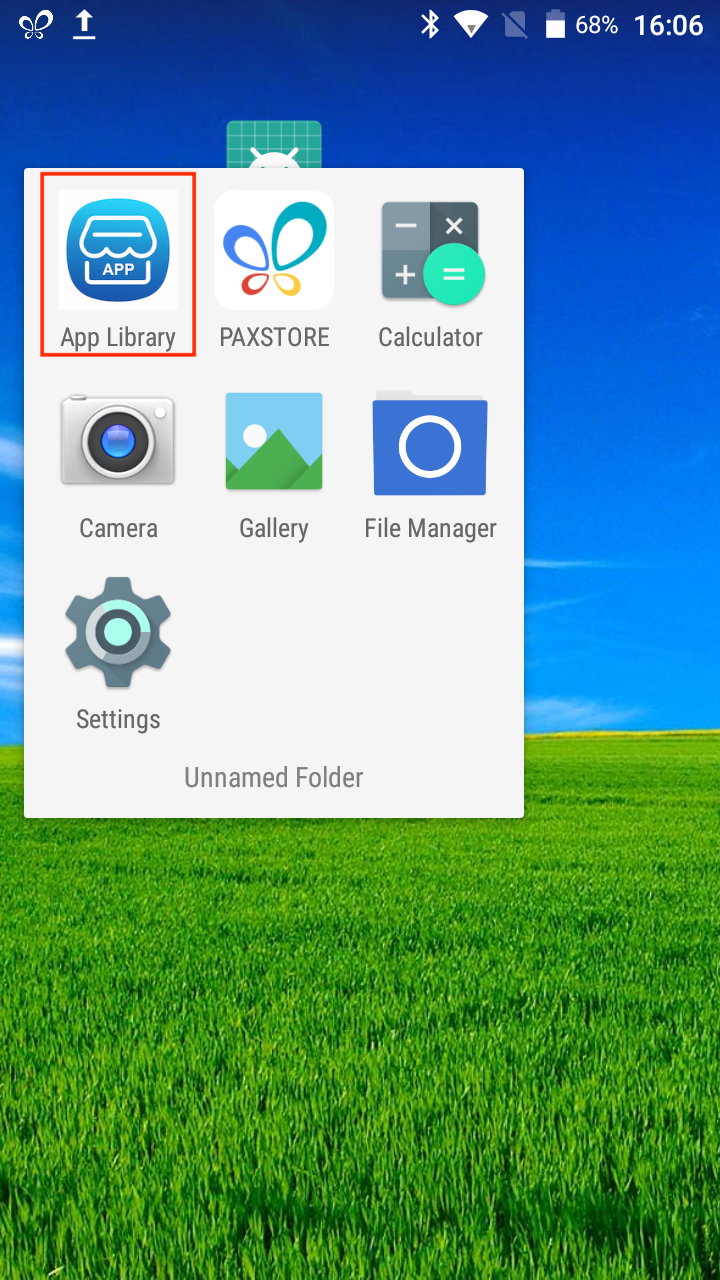
- Check to see if there’s Wonder App file pending to be installed. Wait for Wonder app file to be 100% downloaded, then reboot the device.

- Once the device reboots, you should see the Wonder App appear on the home screen.
- If you can’t find any Wonder App in the App Library or home screen, please contact wonder@support.app.
PAX 終端機設定
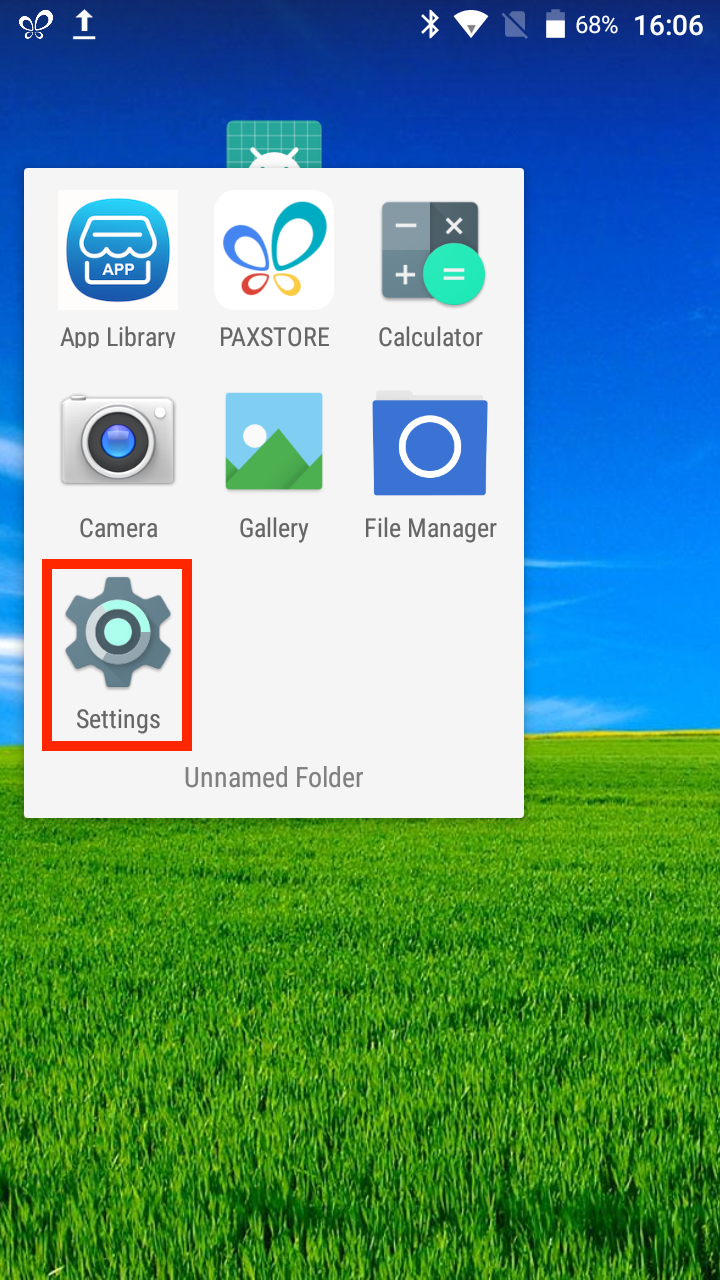
- Click on [Settings].
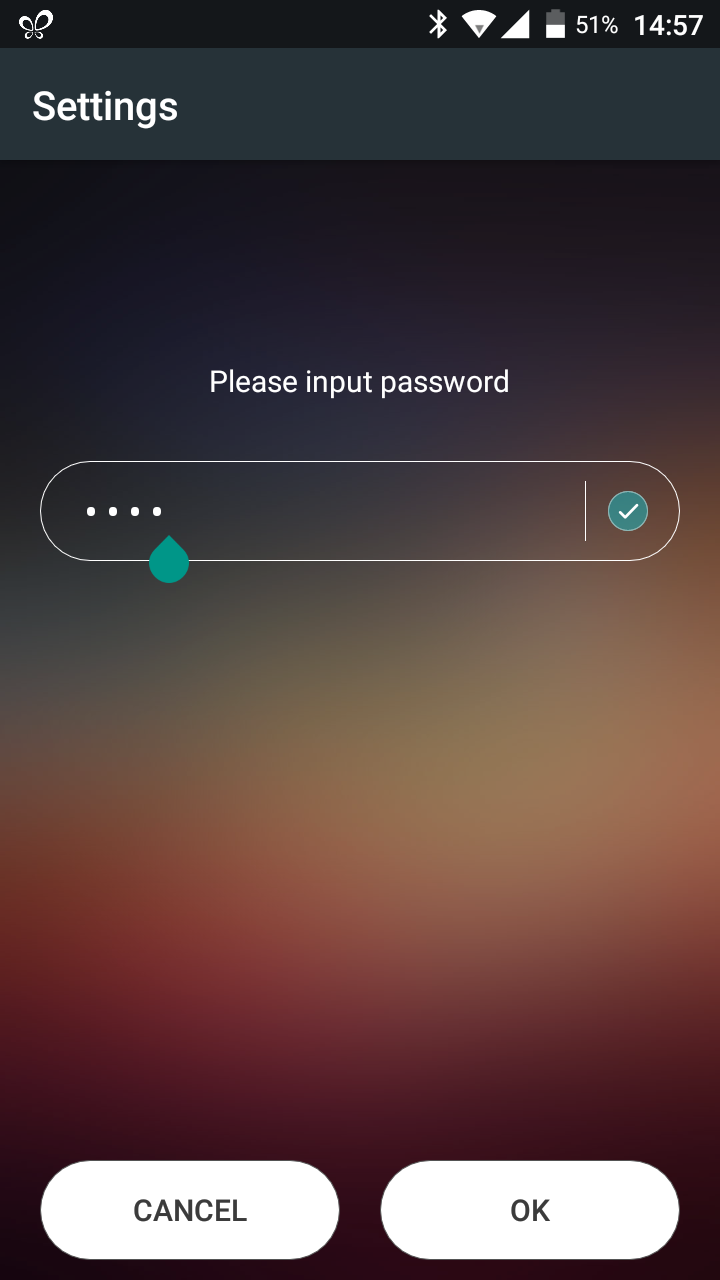
- Enter the password. The password is provided in the Welcome Email sent to your business admin.
連接到Wi-Fi
- Click on [WLAN] to connect and search for a desired network.
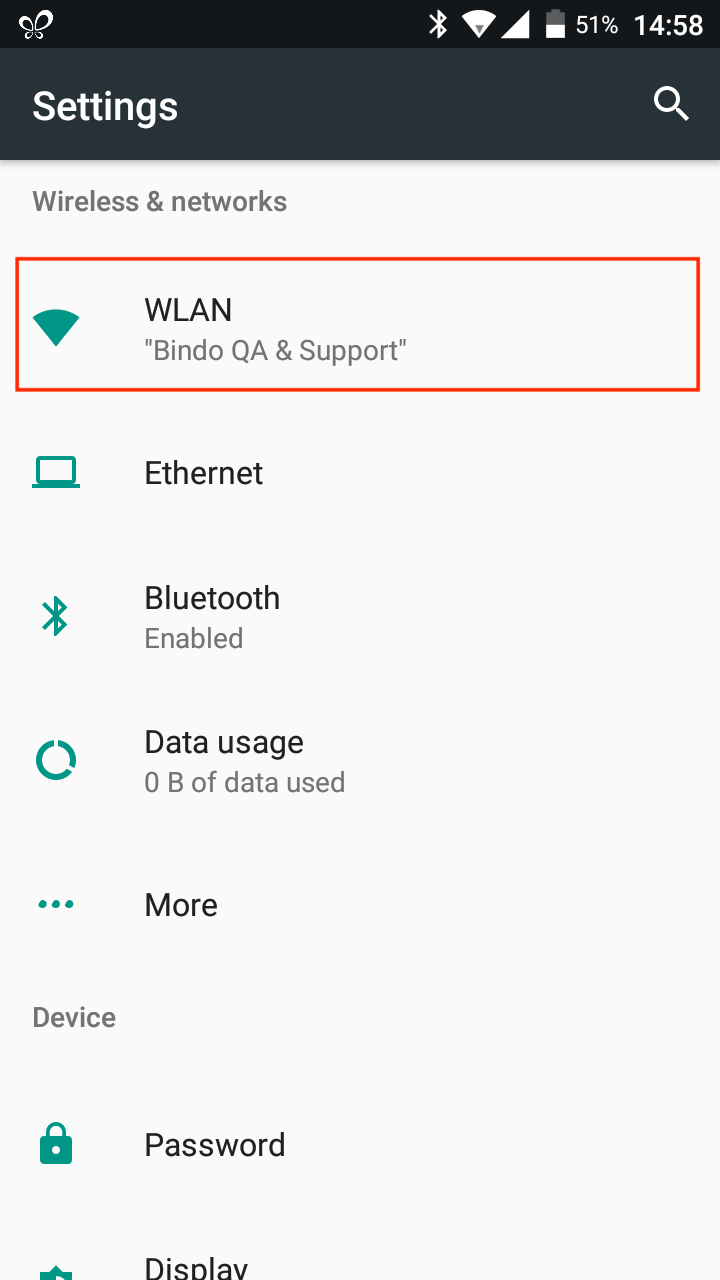
- Enter password if necessary.
- Wi-Fi should be connected successfully.
檢查權限
- Once you enter the settings, scroll down and click on [Apps].
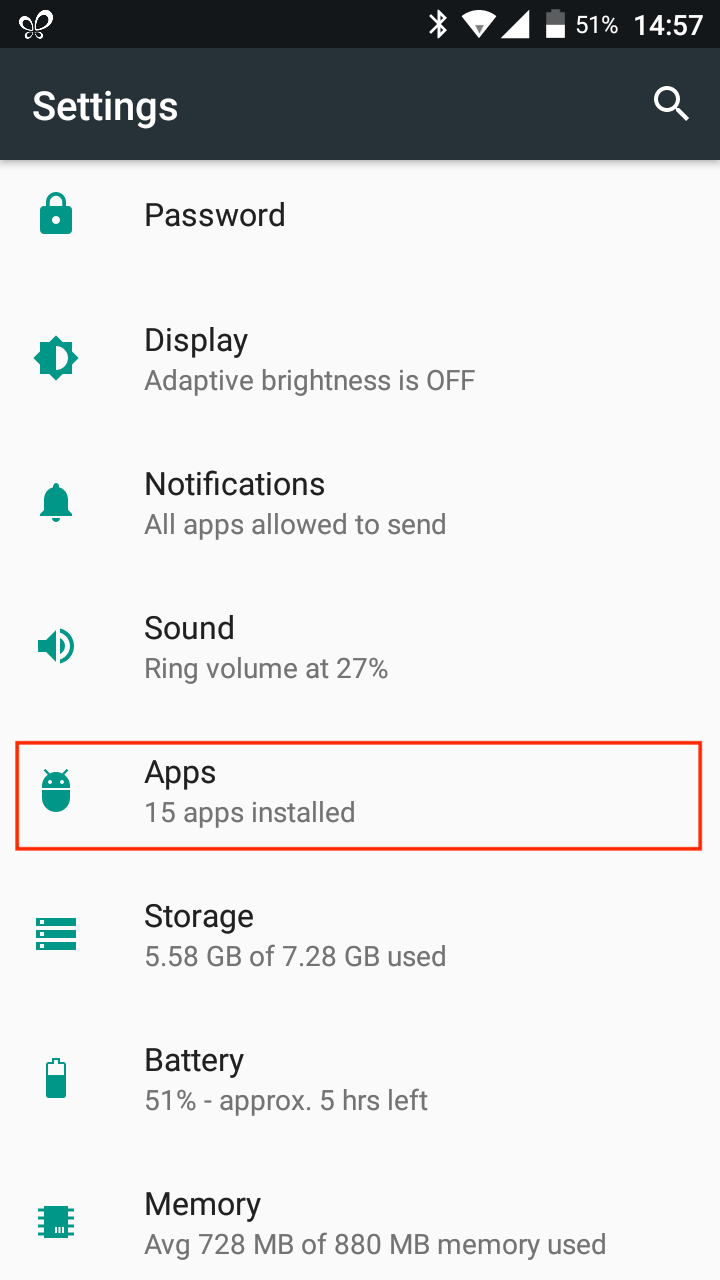
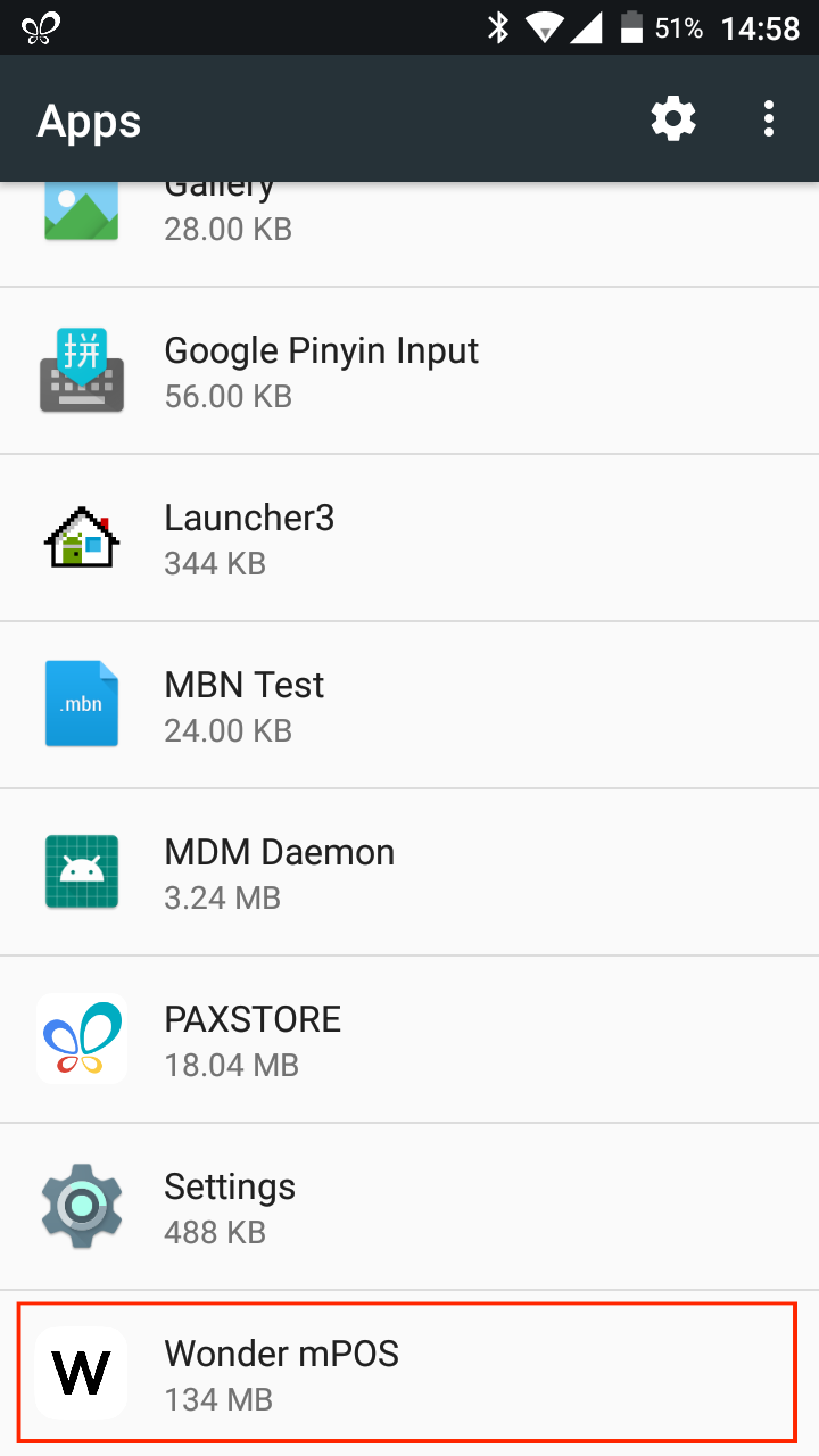
- Click on [Wonder mPOS]. Then click on [Permissions].
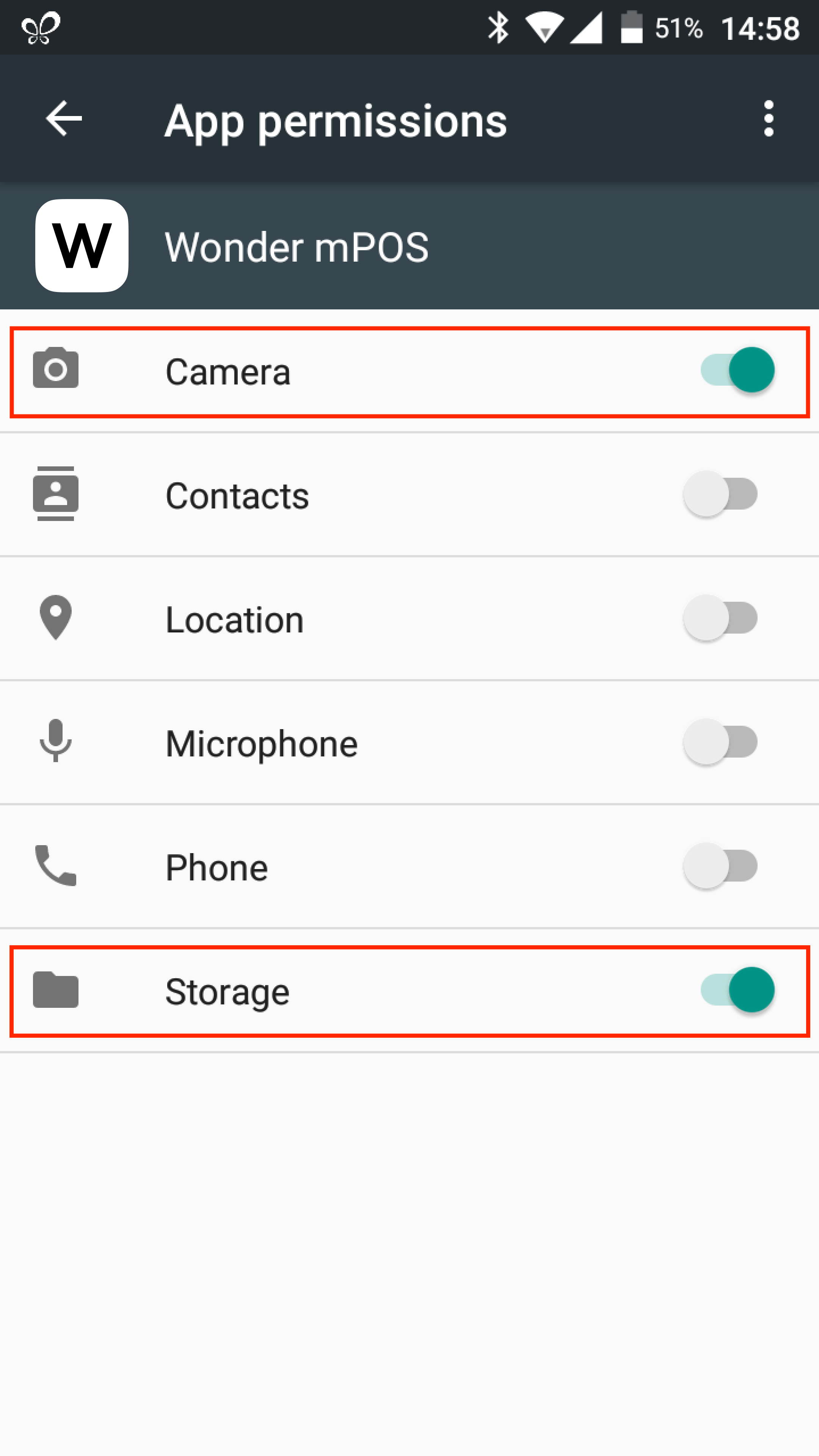
- Here you will be able to turn on and off the permissions, please make sure you turn on permissions such as “camera” and “storage”.
更改 PAX 終端機密碼(可選)
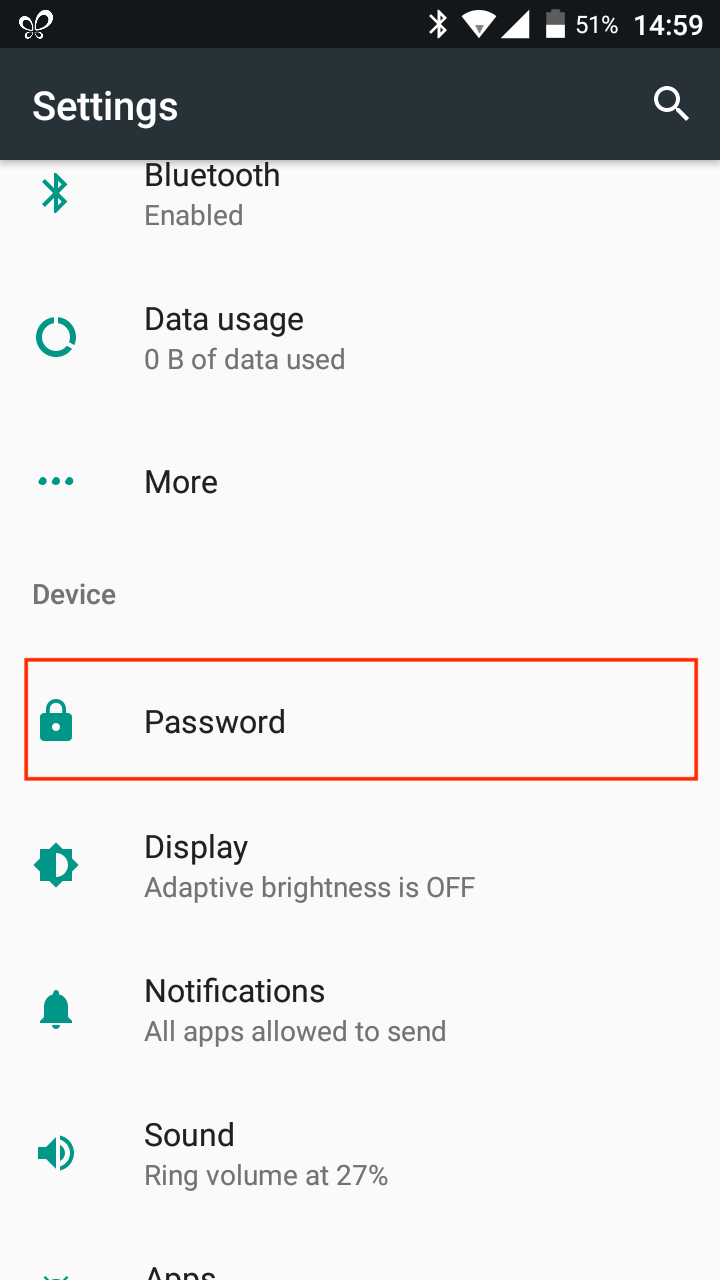
- If you want to change the PAX Machine Setting password, scroll down to [Password].
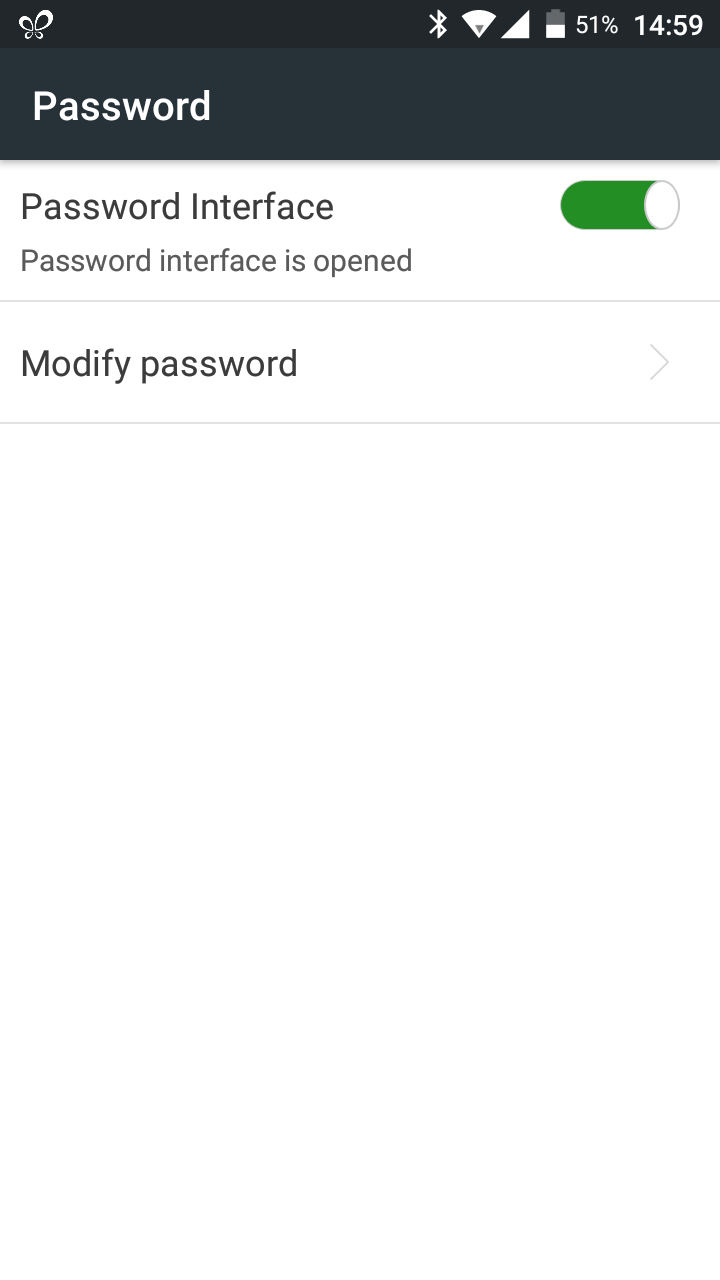
- Click on [Modify Password].
- Input the original password, and then input your new password. Click on [OK].
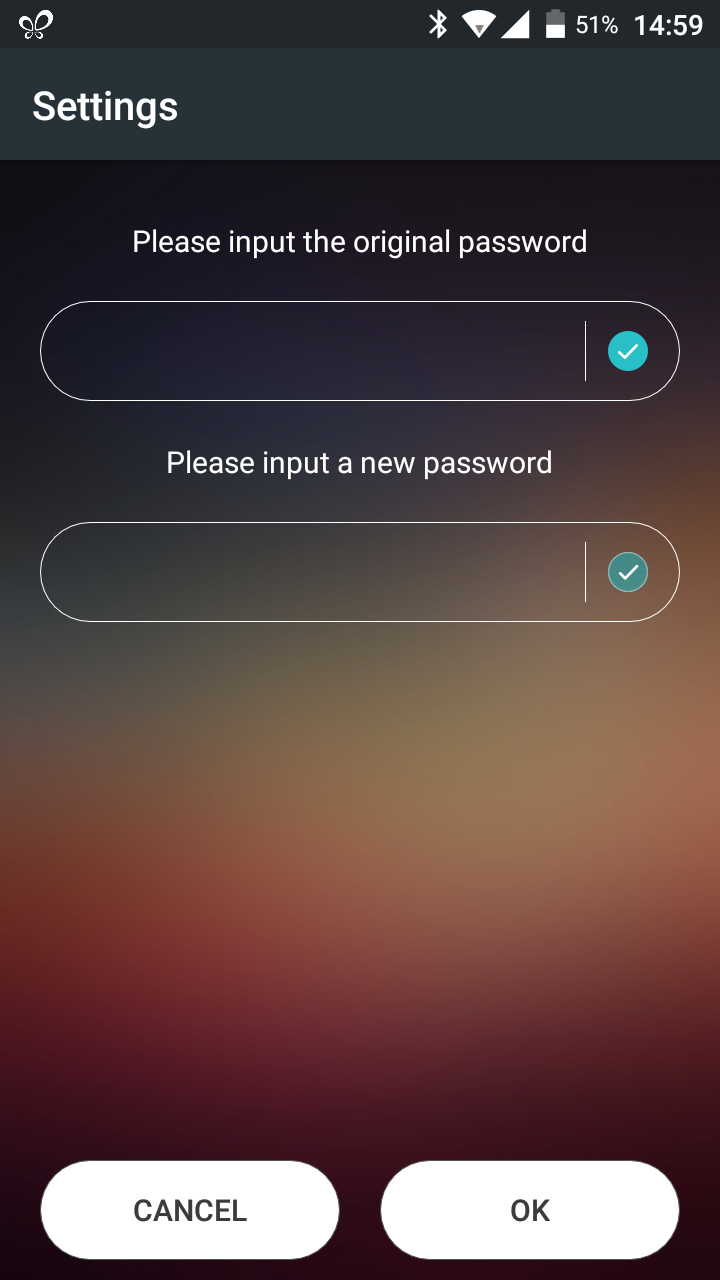
- Password will be changed successfully.